 Google Analytics
Table of Contents
- Alternative variants
- Standalone usage
- Usage with Meltano
- Capabilities
- Settings
-
Client Secrets File Location (
key_file_location) -
Client Secrets JSON (
client_secrets) -
OAuth Client ID (
oauth_credentials.client_id) -
OAuth Client Secret (
oauth_credentials.client_secret) -
OAuth Access Token (
oauth_credentials.access_token) -
OAuth Refresh Token (
oauth_credentials.refresh_token) -
View ID (
view_id) -
Reports (
reports) -
Start Date (
start_date) -
End Date (
end_date)
-
Client Secrets File Location (
- Looking for help?
The tap-google-analytics Singer tap pulls data from Google Analytics that can then be sent to a destination using a Singer target.
-
- Repository: https://github.com/MeltanoLabs/tap-google-analytics
-
-
-
-
-
-
-
- Maintainer: Meltano Community
- Meltano Stats:
-
-
- Built with Meltano SDK: ✔
-brightgreen)






-1324-c0c0c4)
-188-c0c0c4)
Alternative variants #
Multiple
variants
of tap-google-analytics are available.
This document describes the default meltanolabs variant,
which is recommended for new users.
Alternative variants are:
Standalone usage #
Install the package using pip:
pip install git+https://github.com/MeltanoLabs/tap-google-analytics.gitFor additional instructions, refer to the README in the repository.
Usage with Meltano #
Meltano helps you manage your configuration, incremental replication, and scheduled pipelines.
View the Meltano-specific tap-google-analytics instructions to learn more.
Capabilities #
Settings #
tap-google-analytics requires the
configuration
of one of the following groups of settings:
-
key_file_locationview_idstart_date -
client_secretsview_idstart_date -
oauth_credentials.client_idoauth_credentials.client_secretoauth_credentials.access_tokenoauth_credentials.refresh_tokenview_idstart_date
These and other supported settings are documented below. To quickly find the setting you're looking for, use the Table of Contents at the top of the page.
Client Secrets File Location (key_file_location)
#
- Default:
$MELTANO_PROJECT_ROOT/client_secrets.json
How to get #
Follow the steps below if you don’t already have a valid client_secrets.json to upload. The process below can take over 10 minutes, but it’s a one-time setup that’s well worth it.
This extractor supports service account based authorization, where an administrator manually creates a service account with the appropriate permissions to view the account, property, and view you wish to fetch data from.
To access your Google Analytics data, the “Analytics Reporting API” and “Analytics API” both need to be enabled. These need to be enabled for a project inside the same organization as your Google Analytics account.
Step 1: Creating Service Account Credentials #
As a first step, you need to create a new project in Google Cloud Platform or use an existing one:
-
Sign in to the Google Account you are using for managing Google Analytics (you must have Manage Users permission at the account, property, or view level).
-
Open the Service accounts page. If prompted, select a project or create a new one to use for accessing Google Analytics.
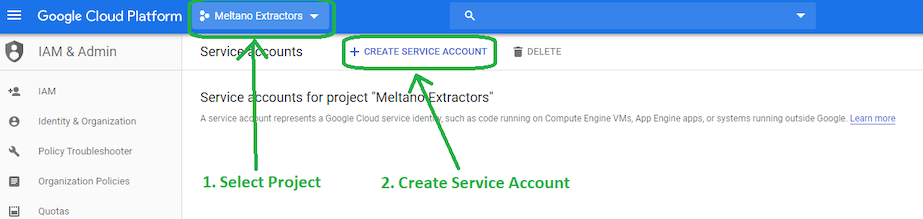
- Click “Create service account”
In the Create service account window, type a name for the service account, and click Create.
We do not need to provide any additional permissions for this account, so click Continue in the Service account permissions configuration page.
We also do not need to grant access to any users for this service account, as we only need the key.
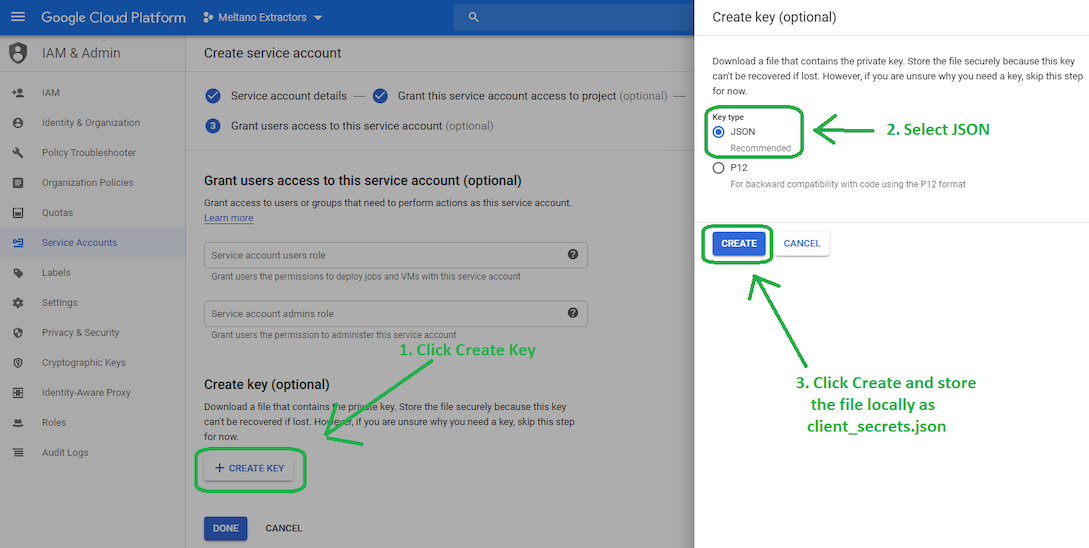
Click Create Key, select JSON as the key type and create a new private key. Then click Save and store it locally as client_secrets.json.
Meltano will use the private key in this client_secrets.json file to connect with the Google Analytics API.
Step 2: Linking Credentials to Google Analytics #
The newly created service account will have an email address that looks similar to:
service-account-name@PROJECT-ID.iam.gserviceaccount.com
To grant this service account access to your Google Analytics data, add the email address as a new user to your Google Analytics account, property or view through the “Admin > User Management” page.
Only the Read & Analyze permissions are needed as Meltano only extracts data to generate reports.
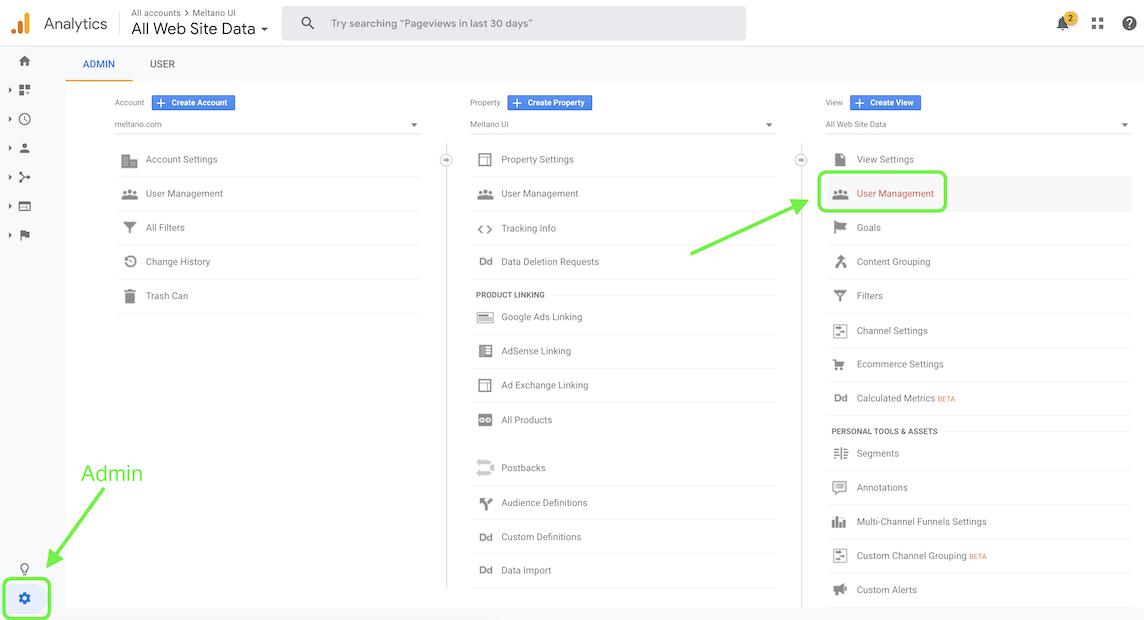
Step 3: Enabling the APIs #
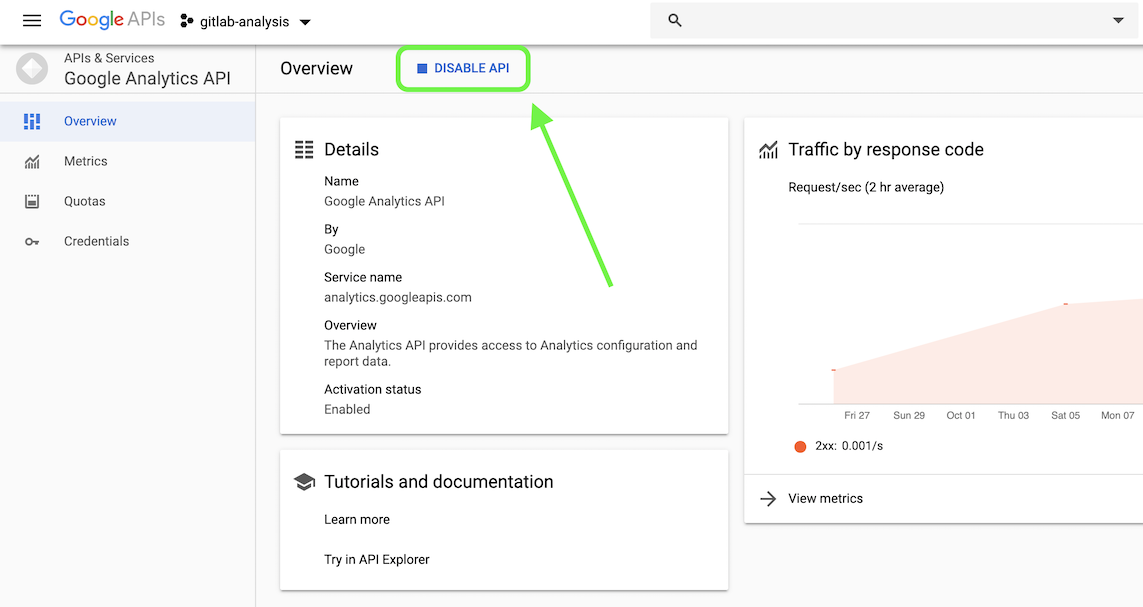
- Visit the Google Analytics Reporting API dashboard and make sure that the project you used in the previous step is selected.
Now enable the API using the button at the top, so that the button will say “Disable API” instead:
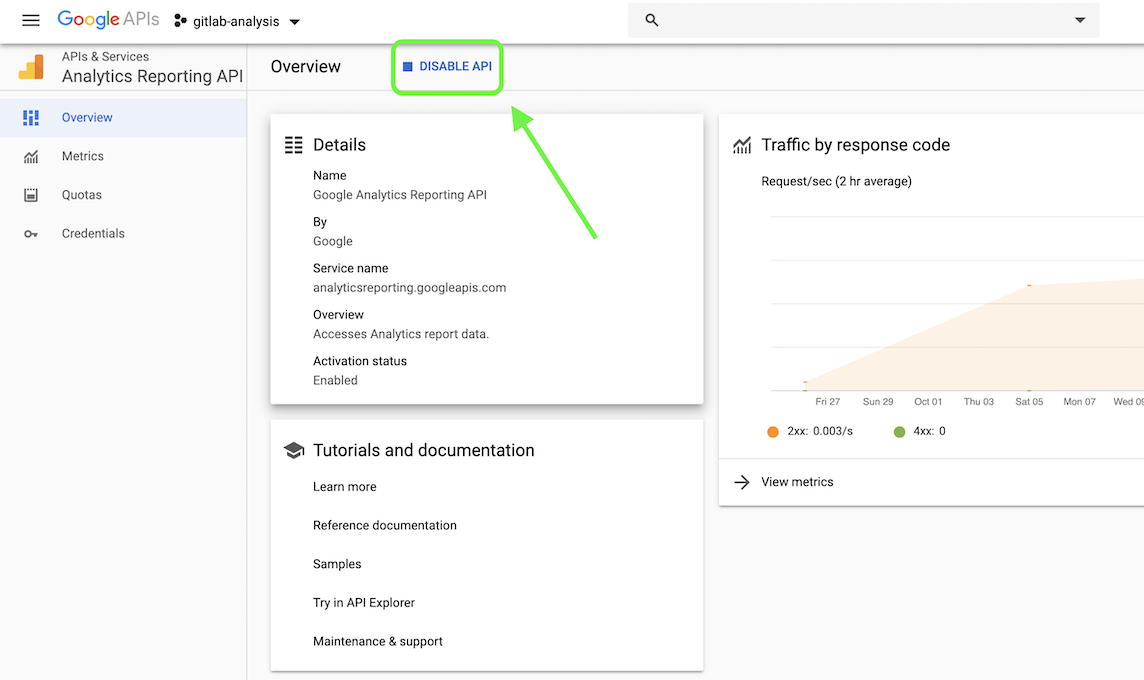
- Next, visit the Google Analytics API dashboard, make sure that the project you used in the previous step is selected, and enable this API as well.
Client Secrets JSON (client_secrets)
#
Follow the above steps for Key File Location but instead of providing a path you can provide the serialized json directly. This can be useful for ephemeral runtime environments where its easier to provide an environment variable instead of a file.
OAuth Client ID (oauth_credentials.client_id)
#
See https://developers.google.com/analytics/devguides/reporting/core/v4/authorization#OAuth2Authorizing.
Takes precedence over Key File Location if both are specified.
OAuth Client Secret (oauth_credentials.client_secret)
#
See https://developers.google.com/analytics/devguides/reporting/core/v4/authorization#OAuth2Authorizing.
OAuth Access Token (oauth_credentials.access_token)
#
See https://developers.google.com/analytics/devguides/reporting/core/v4/authorization#OAuth2Authorizing.
OAuth Refresh Token (oauth_credentials.refresh_token)
#
See https://developers.google.com/analytics/devguides/reporting/core/v4/authorization#OAuth2Authorizing.
View ID (view_id)
#
The ID for the view to fetch data from.
How to get #
To get your View ID:
- Visit Google Analytics: https://analytics.google.com/
- Log in if you haven’t already.
- Open the account/property/view selector in the top left corner

- Select the account, property, and view that you would like to connect with Meltano
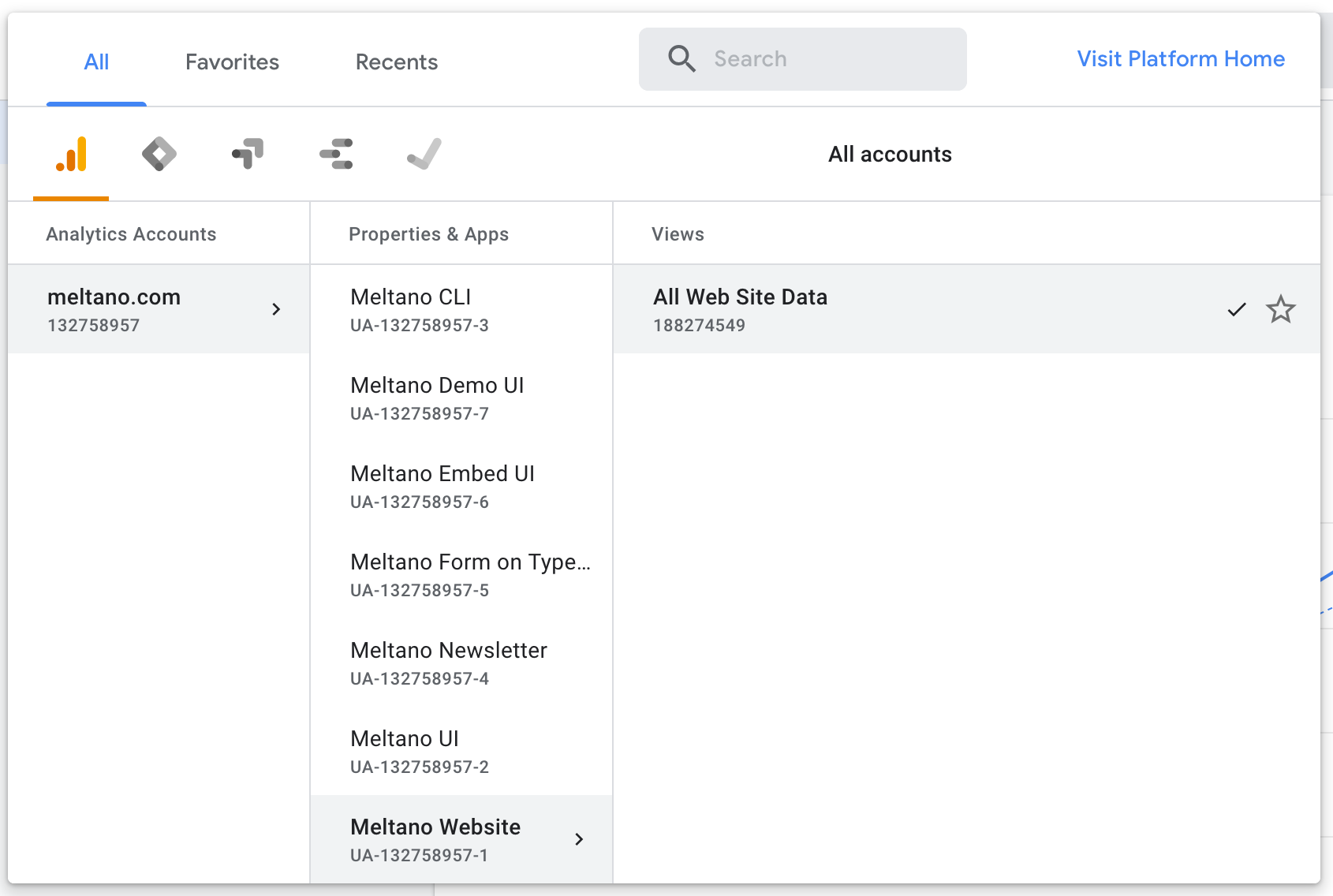
- You will see the View ID displayed inside the selector below the name of the view (e.g. “All Web Site Data”):
188274549
Reports (reports)
#
Project-relative path to JSON file with the definition of the reports to be generated.
See https://ga-dev-tools.appspot.com/dimensions-metrics-explorer/ for valid dimensions and metrics.
The JSON structure expected is as follows:
[
  { "name" : "name of stream to be used",
    "dimensions" :
    [
      "Google Analytics Dimension",
      "Another Google Analytics Dimension",
      // ... up to 7 dimensions per stream ...
    ],
    "metrics" :
    [
      "Google Analytics Metric",
      "Another Google Analytics Metric",
      // ... up to 10 metrics per stream ...
    ]
  },
  // ... as many streams / reports as the user wants ...
]
For example, if you want to extract user stats per day in a users_per_day stream and session stats per day and country in a sessions_per_country_day stream:
[
  { "name" : "users_per_day",
    "dimensions" :
    [
      "ga:date"
    ],
    "metrics" :
    [
      "ga:users",
      "ga:newUsers"
    ]
  },
  { "name" : "sessions_per_country_day",
    "dimensions" :
    [
      "ga:date",
      "ga:country"
    ],
    "metrics" :
    [
      "ga:sessions",
      "ga:sessionsPerUser",
      "ga:avgSessionDuration"
    ]
  }
]
Start Date (start_date)
#
This property determines how much historical data will be extracted. Please be aware that the larger the time period and amount of data, the longer the initial extraction can be expected to take.
End Date (end_date)
#
Date up to when historical data will be extracted.
Looking for help? #
If you're having trouble getting the
tap-google-analytics tap to work, look for an
existing issue in its repository, file a new issue,
or
join the Meltano Slack community
and ask for help in the #plugins-general channel.
Found an issue on this page? #
This page is generated from a YAML file that you can contribute changes to. Edit it on GitHub!